May 22, 2026



 Written by Spedra Team
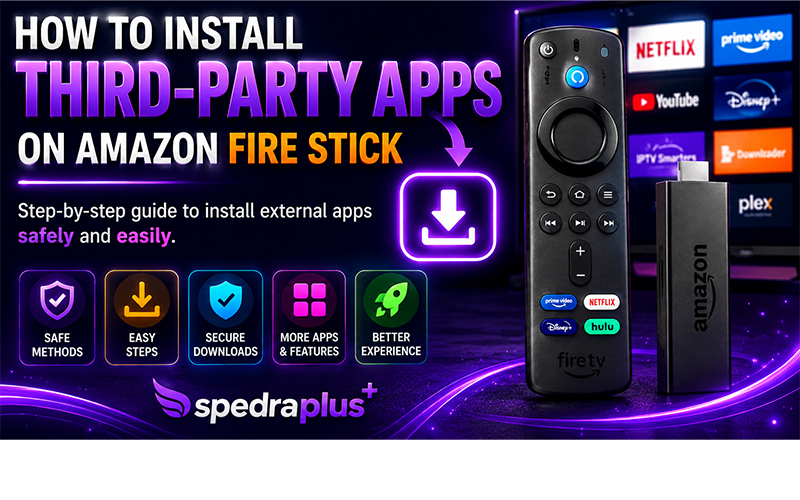
Amazon Fire Stick is one of the most popular streaming devices in the world, offering access to movies, TV channels, sports, and entertainment apps directly on your television. While the Amazon Appstore provides many official applications, many users also want to install third-party apps that are not available in the store.
In this guide, you will learn how to safely install external applications on your Fire Stick step by step.
Third-party apps are applications that are not officially listed in the Amazon Appstore. These apps are usually installed manually using APK files. Many users install them to access additional streaming services, media players, utility tools, or customised entertainment apps.
Yes, it can be safe if you download apps only from trusted sources. However, installing unknown applications from unverified websites may expose your device to security risks or unstable performance.
To stay safe:
Before installing any external application, you must allow the Fire Stick to install apps outside the Amazon Appstore.
Follow these steps:
On newer Fire Stick versions, you may need to enable permissions for a specific installer app such as Downloader.
The easiest way to install third-party apps is by using the Downloader application.
To install Downloader:
The Downloader app allows you to directly download APK files from the internet.
After installing Downloader:
Always make sure the website is trustworthy before downloading any file.
Once the APK file finishes downloading:
The application is now installed on your Fire Stick.
To view all installed applications:
You can also move your favourite apps to the front for easier access.
Make sure Apps from Unknown Sources is enabled.
The APK file may be corrupted or incompatible with your Fire Stick version.
Delete unused apps or clear cache from device settings.
Try reinstalling the application or restarting your Fire Stick.
To improve performance and security:
Installing third-party apps on Amazon Fire Stick is simple once you understand the process. By enabling developer options and using the Downloader app, users can access a wider range of entertainment and utility applications beyond the Amazon Appstore.
Always prioritise security and download apps from reliable sources to ensure the best streaming experience on your Fire Stick device.

Helping our communities connect, work, & thrive since 1952
Spedra Plus, all rights reserved